Reusable widget automation

When a widget goes off-script, teach FillMatic the moves.

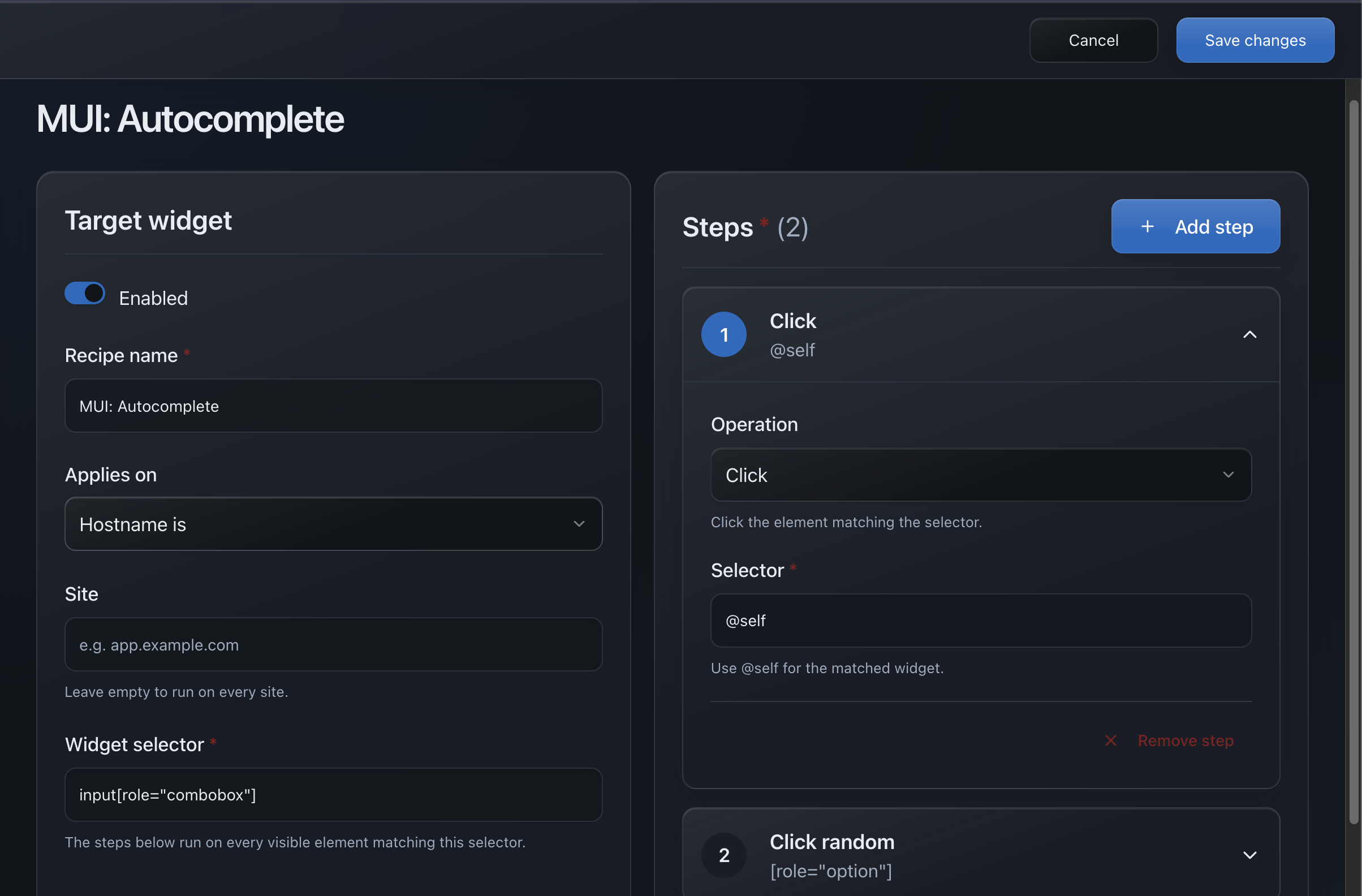
A Recipe tells FillMatic how to operate one custom control: where it appears, what opens it, and which steps complete the interaction. Teach it once; reuse it on every matching fill.

Declarative steps · No custom JavaScript · Stored on your device

recipe / booking-date
Hostname is · booking.example.com
[data-testid="check-in-date"]
01click@self
02waitFor[role="dialog"]
03clickRandom[role="gridcell"] button
04pressEnter
Use the right tool

Most controls need no Recipe.

FillMatic already understands native inputs and common ARIA widget patterns. Recipes exist for the custom edge cases where a site needs a specific sequence.

No Recipe needed

Use normal autofill when the control follows native HTML or supported widget behavior.

  • Text, date, select, checkbox, and radio inputs
  • Standard comboboxes and listboxes
  • Supported Radix and ARIA interactions

A Recipe is a good fit

Use one when the widget requires a predictable series of clicks, waits, typing, or key presses.

  • Custom date pickers with popovers
  • Multi-step selectors and location pickers
  • Site-specific controls with stable selectors

Recipes run first

On a matching page, Recipes handle their target before built-in widget adapters get a turn.

  • Your taught behavior wins
  • The same widget is not filled twice
  • One widget failure does not abort the form
A Recipe has three parts

Match the page. Find the widget. Replay the steps.

Scope the Recipe to the right site, target the widget trigger with CSS, then build the interaction from a small, reviewable set of actions. There is no evaluated JavaScript hiding inside it.

clickclickRandomwaitFortypeselectOptionpress
Scope
URL matcherChoose the hostname or page pattern where this Recipe is allowed to run.
Target
Widget selectorPoint at the visible trigger using a stable CSS selector.
Replay
Action stepsClick, wait, type, choose, or press keys in the required order.
Example: custom date picker

From stubborn widget to repeatable fill

A booking calendar needs four steps. The sequence is explicit, editable, and easy to inspect later.

01 / OPEN

Click the trigger

Use @self to click the widget matched by the Recipe selector.

02 / SETTLE

Wait for the calendar

Wait for the dialog or popover selector instead of guessing with a fixed delay.

03 / CHOOSE

Pick an available day

Click a random matching day button to keep repeated test runs varied.

04 / CONFIRM

Commit the value

Press Enter or click the site’s confirmation control when the widget requires it.

Make Recipes reliable

Stable selectors beat clever selectors.

Recipes are deterministic. Give them dependable targets and explicit waits, and they stay boring—in a good way.

Prefer intentional attributes

Use IDs, names, ARIA attributes, or test IDs before generated class names that can change between builds.

[data-testid="country-picker"]

Wait for what actually appears

Target the popover, dialog, or option list with waitFor so slow rendering does not race the next step.

waitFor [role="listbox"]

Keep the URL scope narrow

Match only the pages that use the widget. An empty matcher intentionally makes a Recipe global.

hostname · checkout.example.com
Portable by design

Export it. Review it. Share it.

Recipes live in Chrome’s local extension storage. Export them as JSON for backup or team sharing, then import them on another machine without relying on a FillMatic account or server.

booking-date.recipe.json
{ "name": "Booking calendar", "active": true, "matcher": { "type": "hostname", "value": "booking.example.com" }, "selector": "[data-testid='check-in-date']", "steps": [ { "kind": "click", "selector": "@self" }, { "kind": "waitFor", "selector": "[role='dialog']" }, { "kind": "clickRandom", "selector": "[role='gridcell'] button" } ] }

Start with normal autofill. Add a Recipe only when you need one.

The built-in engine handles the common path. Recipes give you a clean escape hatch for everything custom.

Add to Chrome